
This one is a little different from my usual posts. There is no FortiGate configuration and no lab topology. Instead, this is the first part of a three-part series about a device I installed in my own car, what I found when I finally looked under the hood, and how I fixed it. I am also starting with a confession: I did not practice what I preach.
Why I Bought It
Anyone who has done a long road trip with kids in the back seat knows the questions. “Are we there yet?” usually shows up about 20 minutes in. My 2022 Model Y does not have a rear entertainment screen, so in July 2025 I bought a popular aftermarket one directly from the vendor’s website for about $250.
On paper, it checked every box. It replaces the rear console panel and looks like it came from the factory. It runs Android, so the kids could watch their shows and play games. It also connects to the car, so rear passengers can turn on their seat heaters and adjust the climate without asking the driver.
It worked well for a while. Then it got slower. Every app switch turned into a wait, and restarts only helped for a few minutes. The vendor had promised software updates, but none ever arrived.
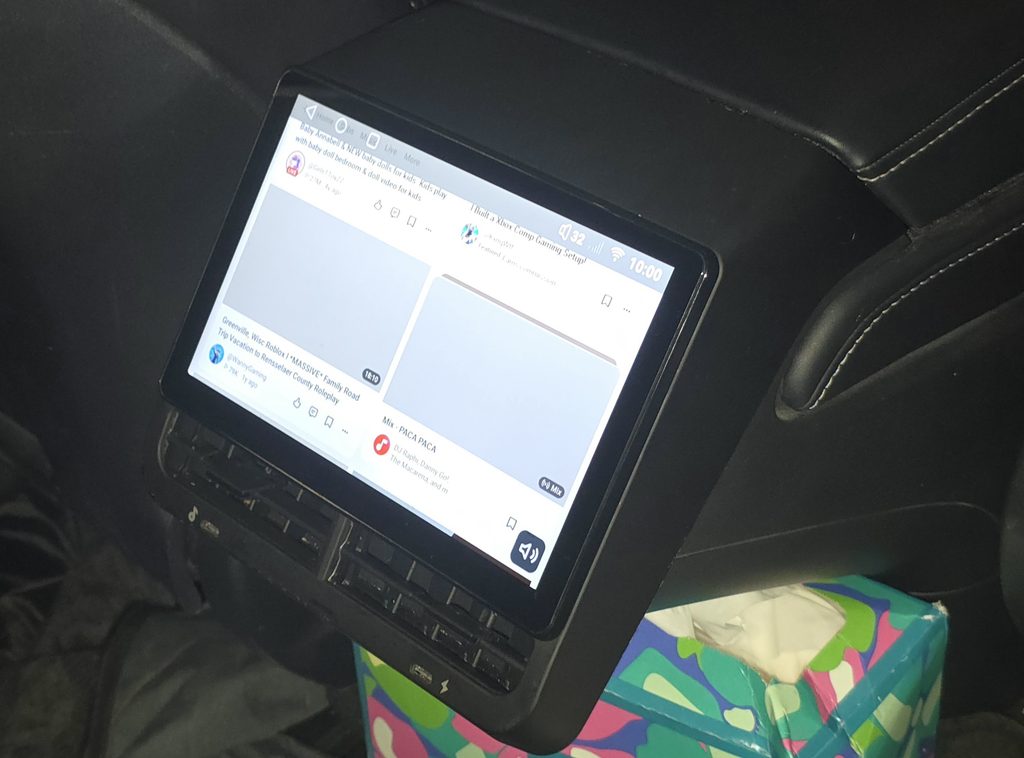
Figure 1. – Photo of the aftermarket rear screen installed in the rear console (You know it’s real when you see tissue in the back)
It Is Not a Monitor. It Is a Computer.
Before I get into what I found, it is important to understand what this device actually is, because that is the whole point of this series.

Figure 2. – Diagram of what an aftermarket Android rear screen connects to
Below is a summary of the role each connection plays:
- The phone hotspot: on the road, the screen gets internet from my phone. Every device on that hotspot shares a network with the screen.
- Home Wi-Fi: in the garage, the screen joins my home network, the same network as my laptops and everything else.
- The car: the screen is wired into the rear console harness so it can control seat heat, climate and the passenger seat.
- The vendor’s cloud: firmware updates, telemetry and the services behind the preinstalled apps.
In a nutshell, I installed an Android computer that runs code, joins my networks, and is wired into my car. I would never put a device like that on a customer’s network without assessing it first. That brings me to the confession.
The Due Diligence I Skipped
I spend my days helping customers secure their networks. A common conversation I have is about IoT devices: the cameras, printers and smart TVs that quietly join a network and never get patched. I tell people to treat anything that runs code as a computer, because that is what it is.
Then I bought a screen from an overseas vendor, plugged it into my car, connected it to my home Wi-Fi and never assessed it.
To be fair to myself, security was always in the back of my mind. I had a feeling there would be issues. Cheap, white-label Android hardware does not have a great track record. What finally pushed me to look was the slowness. It had become unbearable, and it made me wonder what was really running on my own screen.
Please Note: I am intentionally not naming the product or the vendor yet. I have reported these findings to the vendor through a coordinated disclosure process, and I want to give them a fair chance to fix them before I publish technical details.
Hidden in Plain Sight
To let Claude connect to the screen for a read-only assessment, I first had to turn on wireless debugging. That is where I noticed something. Developer Options were not just turned off; they were hidden. I had to tap the build number seven times to reveal the menu, and every debugging toggle inside it was off. That is exactly how it should be on a consumer device.
Once connected, I asked Claude to look at what is installed, what is running, what is listening on the network and why the device is so slow. (Part 3 covers how I did that and the guardrails I used.)
The performance answers were what I expected. The security answers were not.
The most serious finding was a debugging service that was listening on the network from the moment the screen booted. It ran with full administrative (root) privileges, and it required no authorization of any kind. On a normal Android device, debugging is off by default. When you do turn it on, the device shows a prompt and asks you to approve each computer that connects.
Here is the part that bothered me the most. This service had nothing to do with the wireless debugging I turned on. It was a separate one, and it had been running since the day I installed the screen, while Developer Options were still hidden and every toggle said off.

Figure 3. – Diagram comparing what the settings app showed with what the network exposed
From the settings app, the screen looked locked down. From the network, anyone on the same Wi-Fi could take full control of it, with no password and no prompt on the screen.
So, who is “anyone on the same Wi-Fi”? It is worth being precise here, because overstating a finding is just as unhelpful as understating it.
- In the car, it is anyone connected to my phone’s hotspot. That might only be my family, but it is also anyone who learns the hotspot password.
- At home, it is anything on my home network, including every other IoT device that might itself be compromised.
- It is not directly exposed to the internet in my setup. Both networks sit behind NAT.
Any App Can Reach the Car
When I first drafted this post, whether any of this reached the car was still an open question. It is not anymore.
The screen talks to the car through a vendor service that bridges Android and the car’s CAN bus, the network the car’s own modules use to talk to each other. On a well-designed device, that bridge would be locked down so that only the vendor’s own car-controls app could use it. Android has a standard way to do this: the service checks that the calling app holds a specific permission, or was signed by the vendor, before it answers.
To test it, I installed a plain app of my own. It had no special signing and requested no permissions at all. It asked Android for the screen’s car interface, and Android simply handed it over. All 45 of the interface’s functions were visible to it. All 14 of the read-only calls went through without a single permission error.

Figure 4. – Diagram of an ordinary app reaching the screen’s car interface with no permission check
Based on the data it describes and the names of its functions, that interface offers:
- Reading vehicle state: gear, speed, door and trunk state, seatbelts, tire pressures and parking sensors.
- Sending commands to the car: the same path the vendor’s seat-heat and climate buttons use.
- Injecting steering-wheel button presses.
- Overwriting the vehicle state that other apps on the screen read.
- Listening to the commands the vendor’s own app sends.
For full transparency: what I have verified is that an app with no permissions gets the interface and that its read calls succeed. I have not sent any commands, injected anything or overwritten anything. My next test is deliberately harmless, turning a rear seat heater on and then off, and I will share the result.
To be clear, this is not a flaw in the car itself. It is the aftermarket screen’s own bridge into the car. That distinction matters, but it does not make the bridge any less important.
So why does this matter? “Any app” is a bigger group than it sounds. It includes every app that came preinstalled, a third-party app store among them, and anything that store installs. It also connects back to the debugging service above. Anyone on the same Wi-Fi with that root access could install an app of their choosing, and that app would need no permission at all to reach the car’s interface.
Those two findings were not the only issues. They were just the two that made my stomach drop. I will walk through the rest, and why they surprised me and did not surprise me at the same time, in Part 2.
Lessons Before You Plug It In
If you take one thing from this post, I hope it is this: anything that is connected to a network and can run code deserves an assessment, especially when it is part of your car. Here is the short list I wish I had followed in July 2025:
- Treat it as a computer, not an accessory. If it runs an operating system, it has an attack surface.
- Isolate it. At home, put it on its own VLAN or IoT network. In the car, be deliberate about who joins your hotspot, and use a strong password.
- Scan it before you trust it. A quick port scan from a laptop on the same network shows what the device is offering to everyone around it.
- Check the security patch level. On Android, it is under “Settings | About”. A brand-new device with a patch level that is years old tells you a lot about how it will be maintained.
- Ask how updates are delivered. If the vendor cannot tell you, or there is no way to report a security issue, factor that into the purchase.
- Ask what is allowed to talk to the car. If a device bridges into your vehicle, find out what stops any random app from using that bridge.
- Do not let the settings app be your only source of truth. What a device shows you and what it exposes to the network are two different things.
Pro-Tip: You do not need to be a mobile security expert to do this anymore. In Part 3, I will show how I used AI to do the heavy lifting on the assessment while I kept control of every change.
In the next article, I will walk through the full set of findings, the ones that genuinely shocked me, and what it felt like to confirm a hunch I had been ignoring. Stay tuned!
As always, please leave a comment below and let me know your thoughts, especially if you have assessed a device in your own car. I hope this helps!
AI disclosure: Claude performed the assessment described in this post and helped me draft the article and its visuals. I reviewed and approved every change made to the device and every word published here.
This article is based on my own device and is not official guidance from the vendor, Tesla or Google. Please check with your device’s manufacturer before making changes to equipment installed in your vehicle.